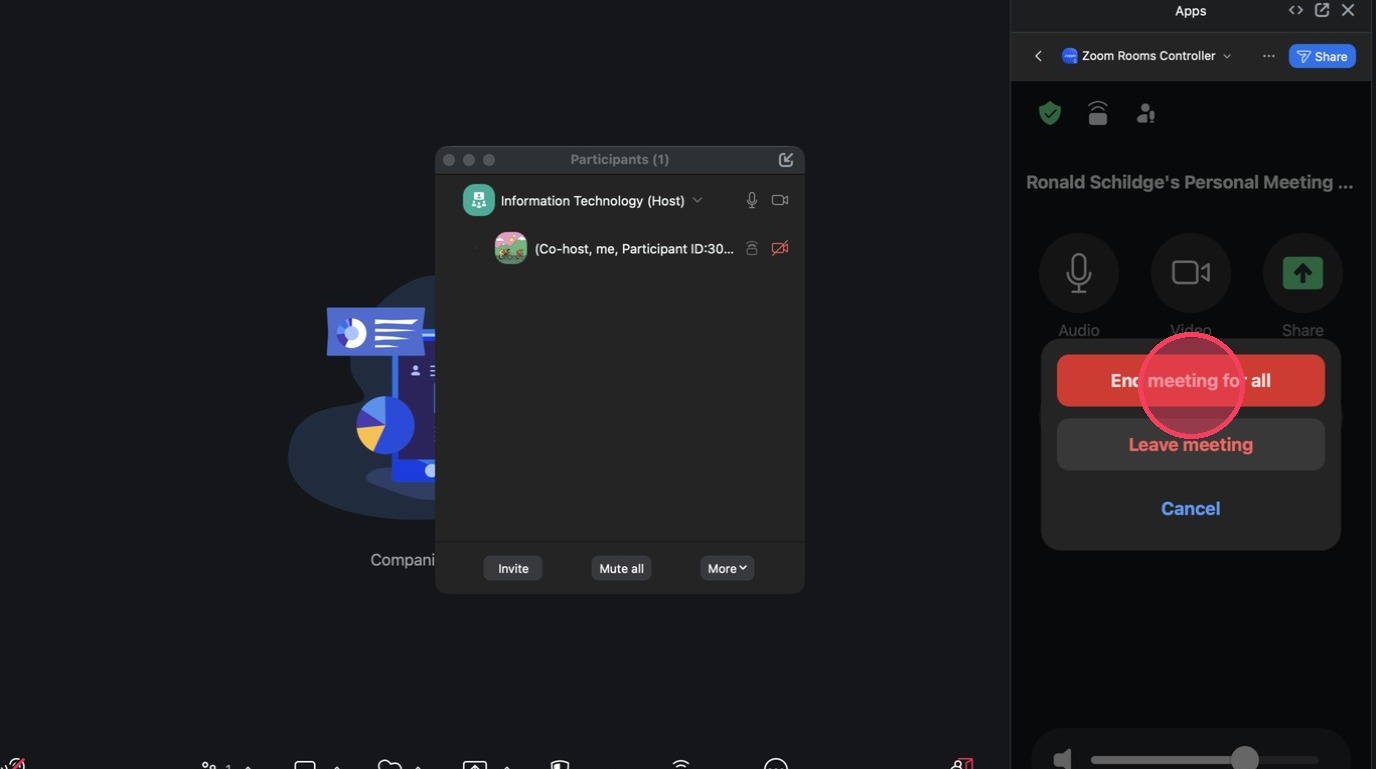
If you would like to control a Zoom Room without the controller device, you can use your computer instead. You will have all the same abilities including turning on and off the camera and microphone, adjusting the display settings, and sharing your screen. See this video or either of the two explanations below to "Create a Meeting in a Zoom Room" or "Transfer a Meeting to a Zoom Room".
How to Transfer a Zoom Meeting to a Room
1. In your meeting, click "More" then "Transfer to room"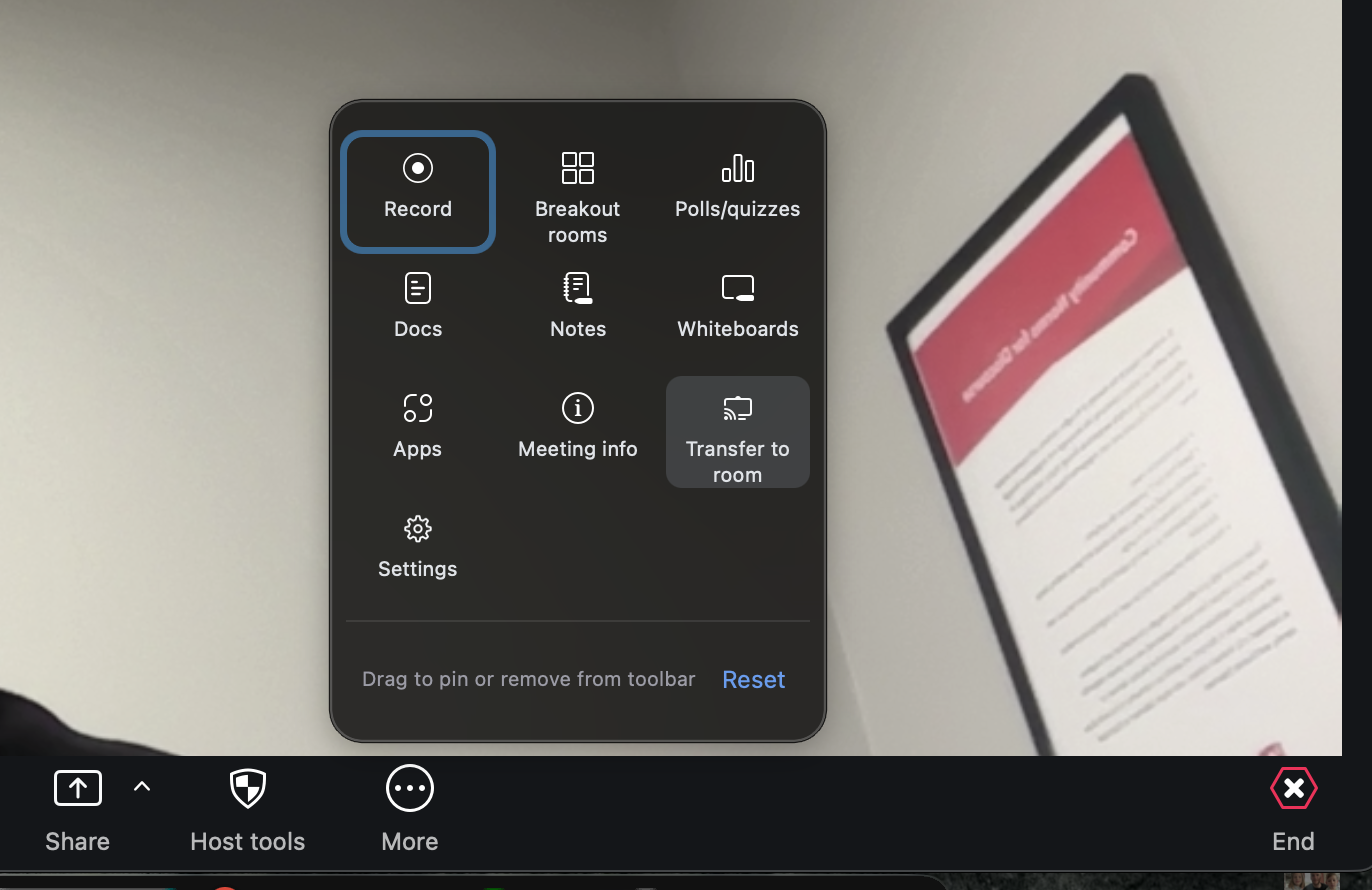
2) Enter the code at the top right corner of the TV with the Zoom Room
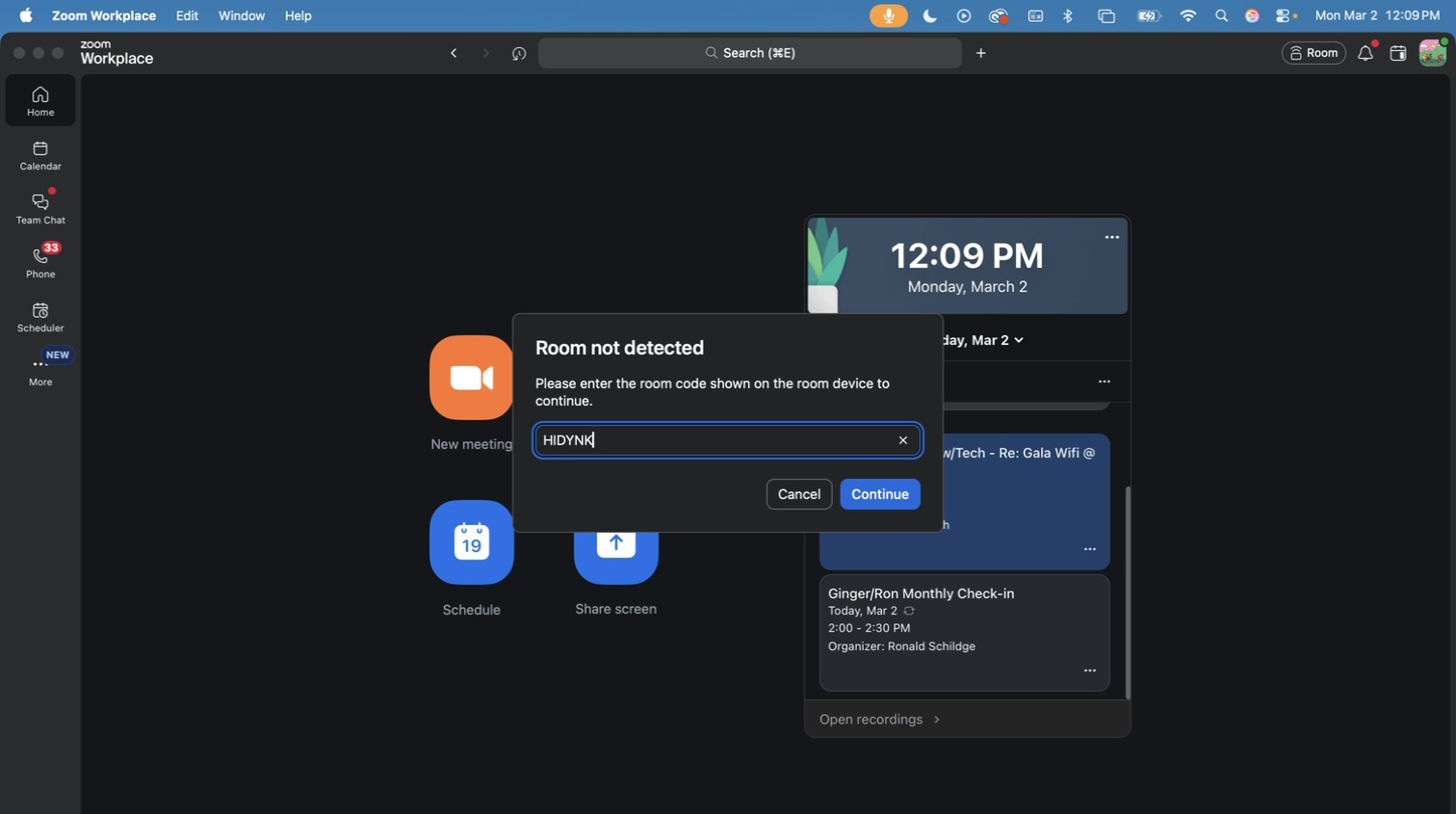
3) Use the controls to adjust the meeting settings to your preference.
You can also share your screen with the Zoom room and participants. 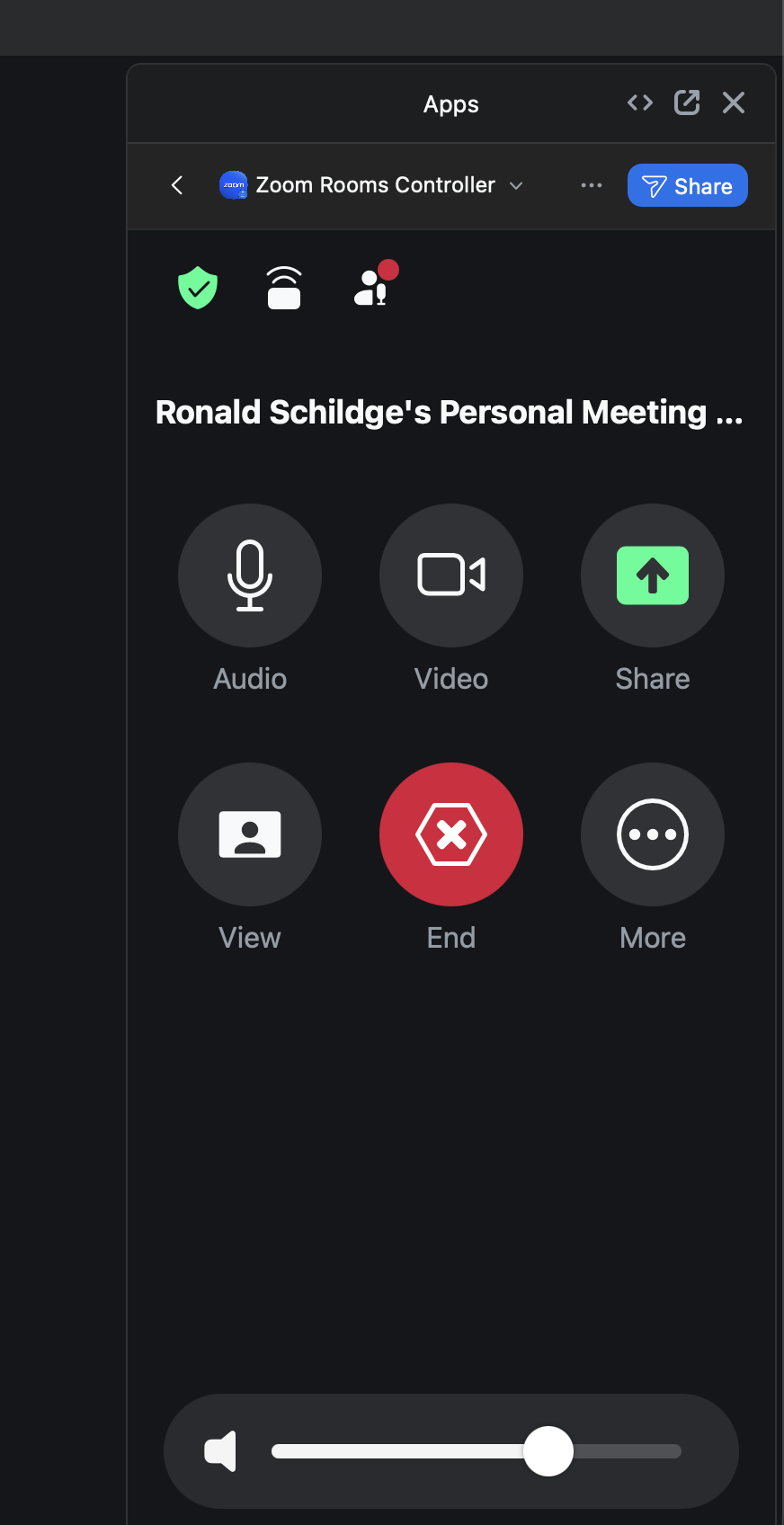
How to Create a Meeting in a Zoom Room
1. Open the "Zoom Workplace App"
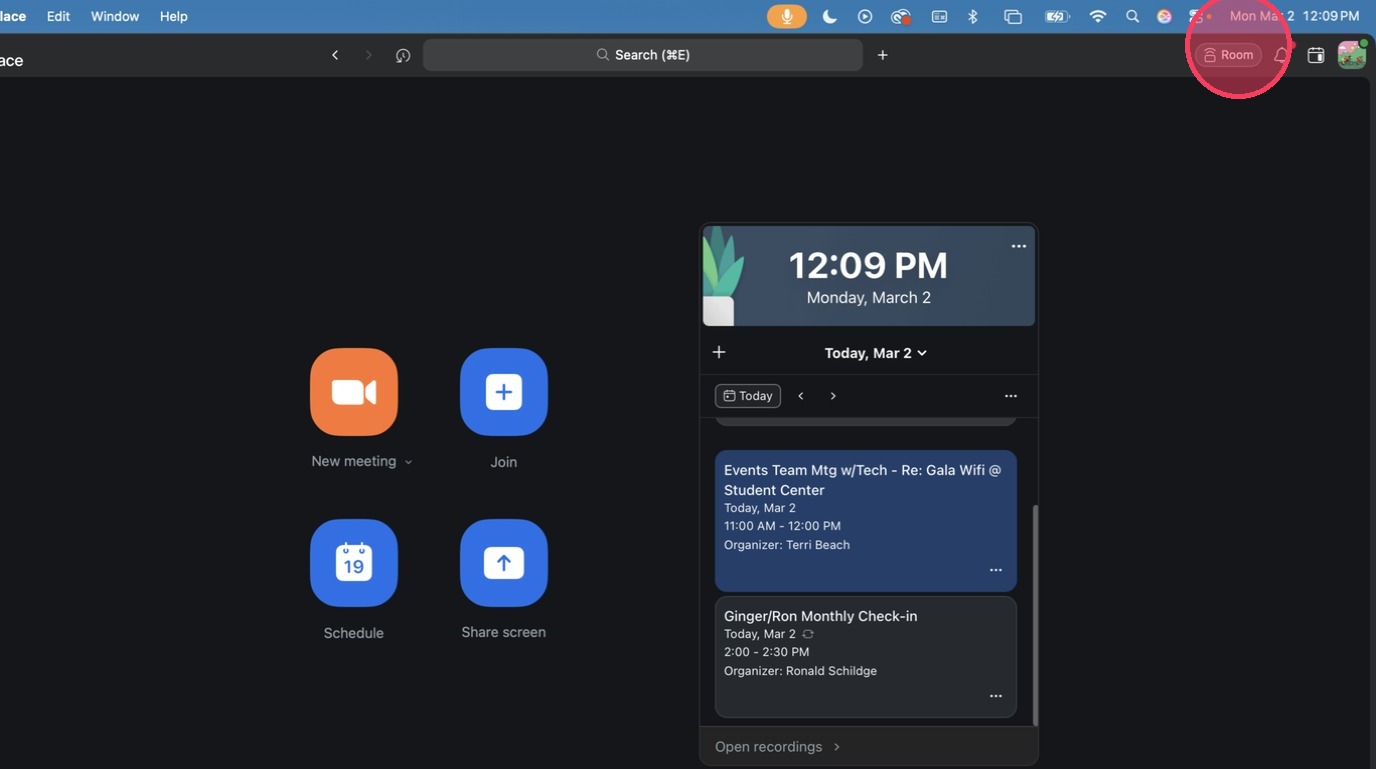
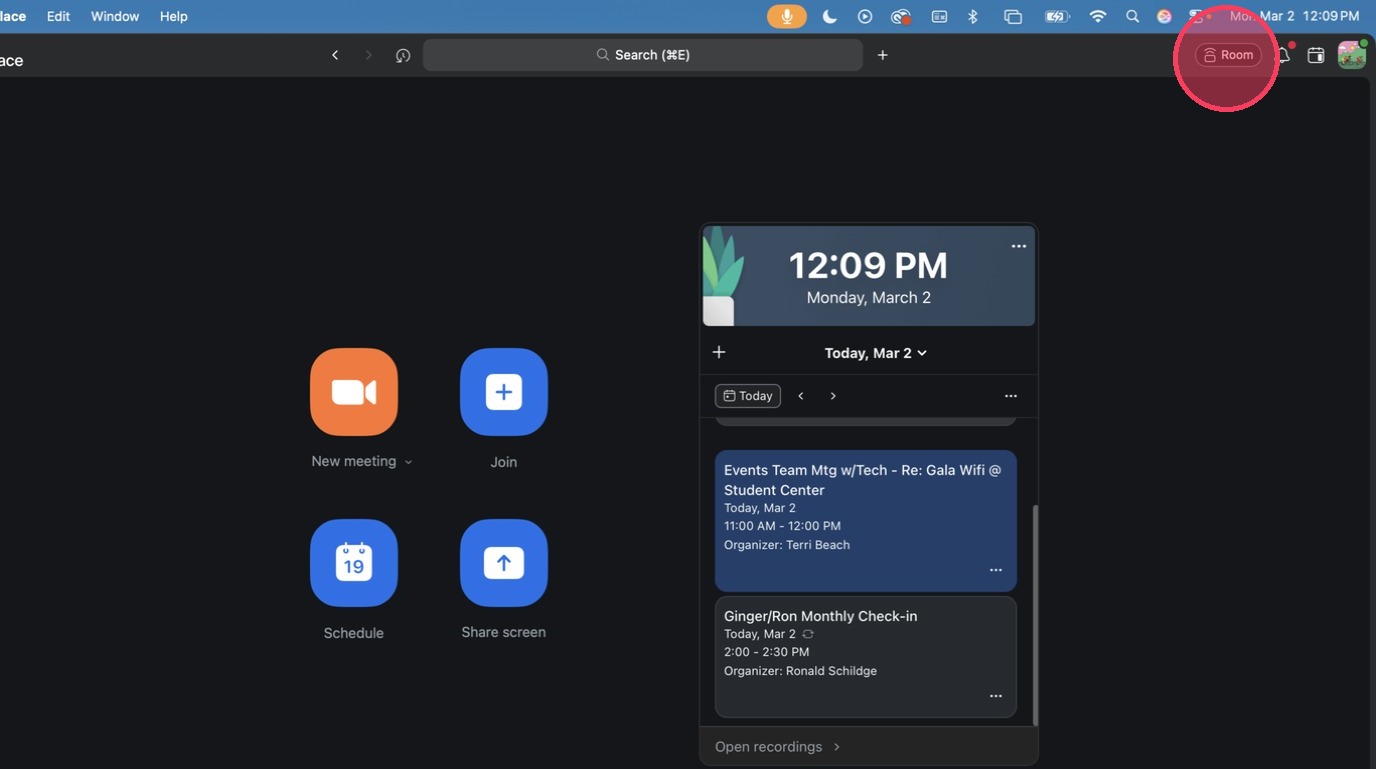
2. Click "Room"
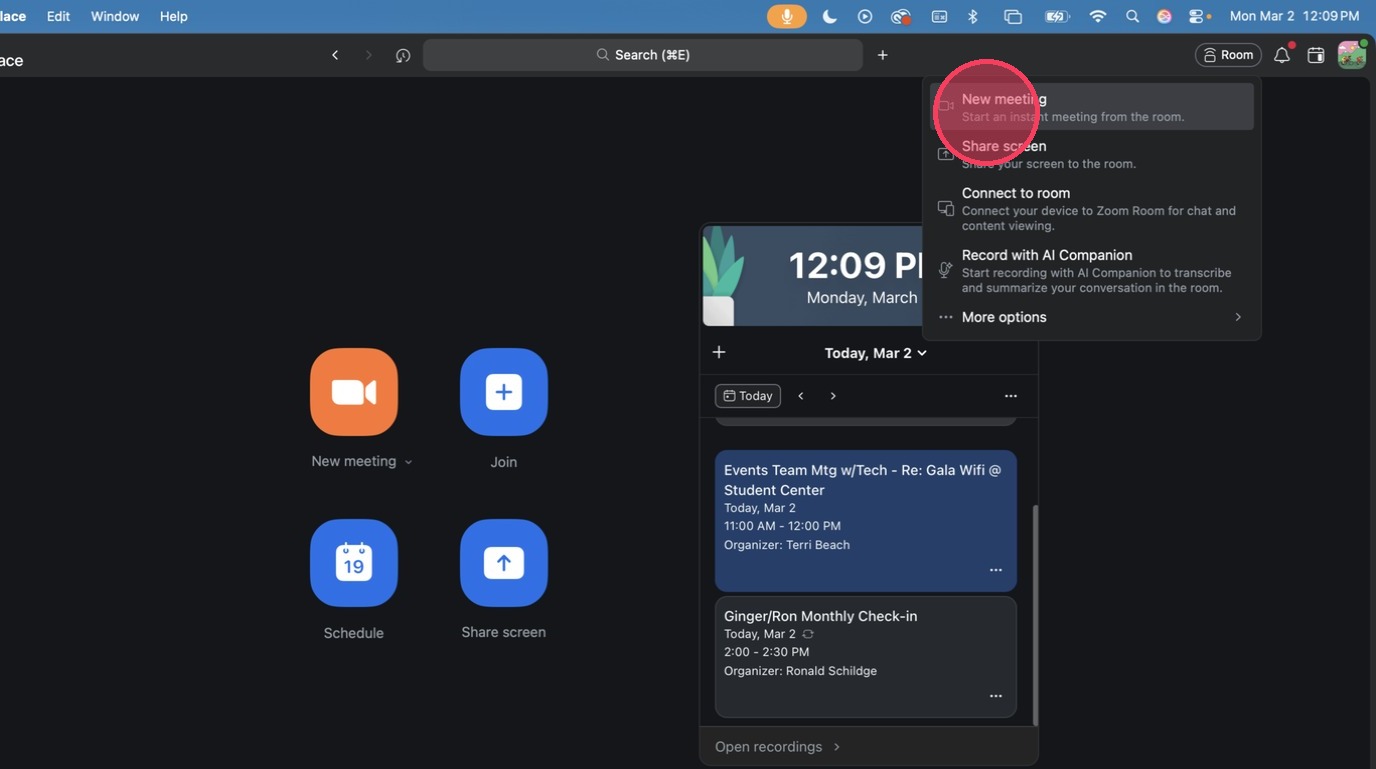
3. Click "New Meeting"
4. Enter the code at the top right corner of the TV with the Zoom Room
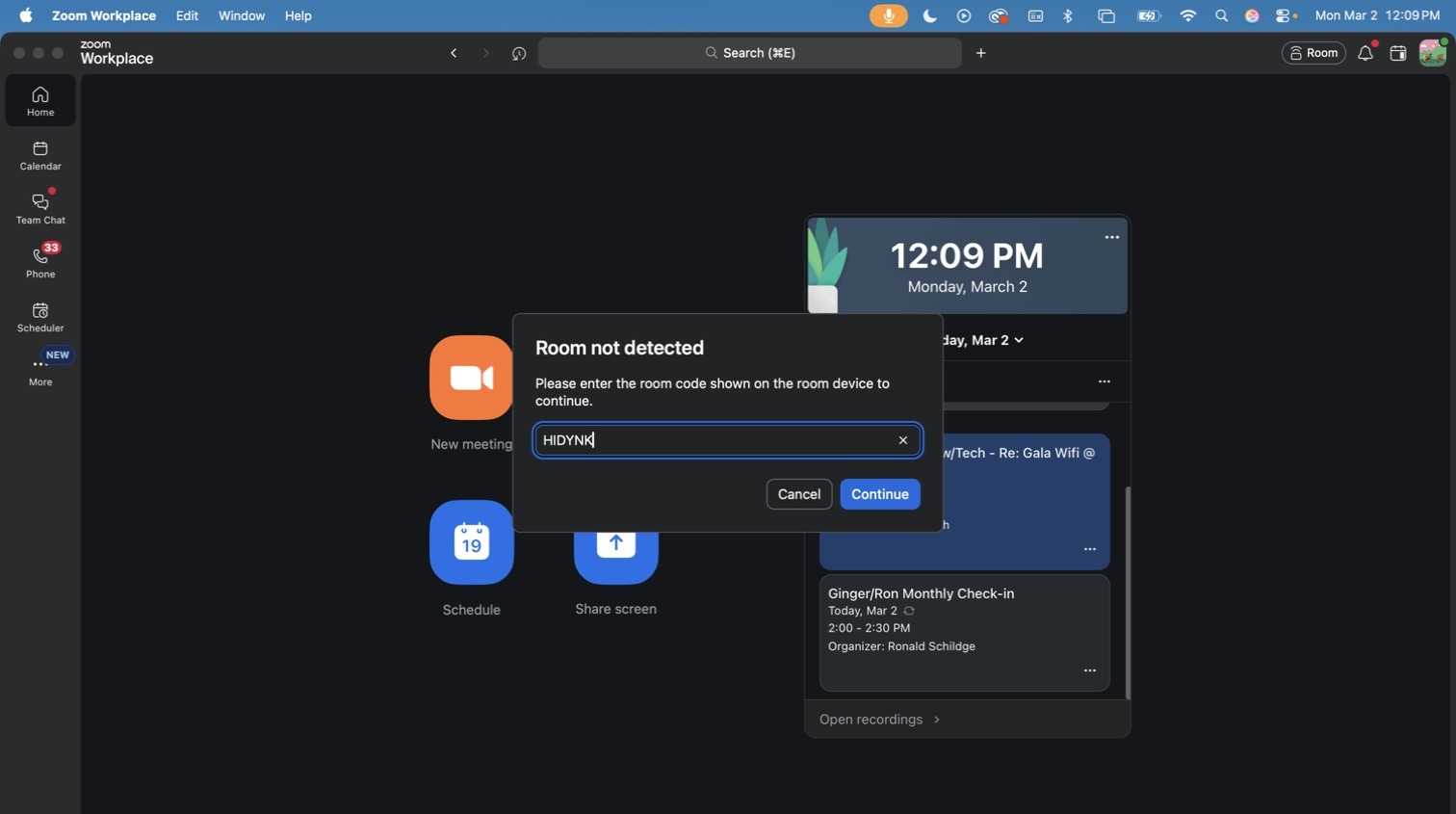
5. Click "Connect"
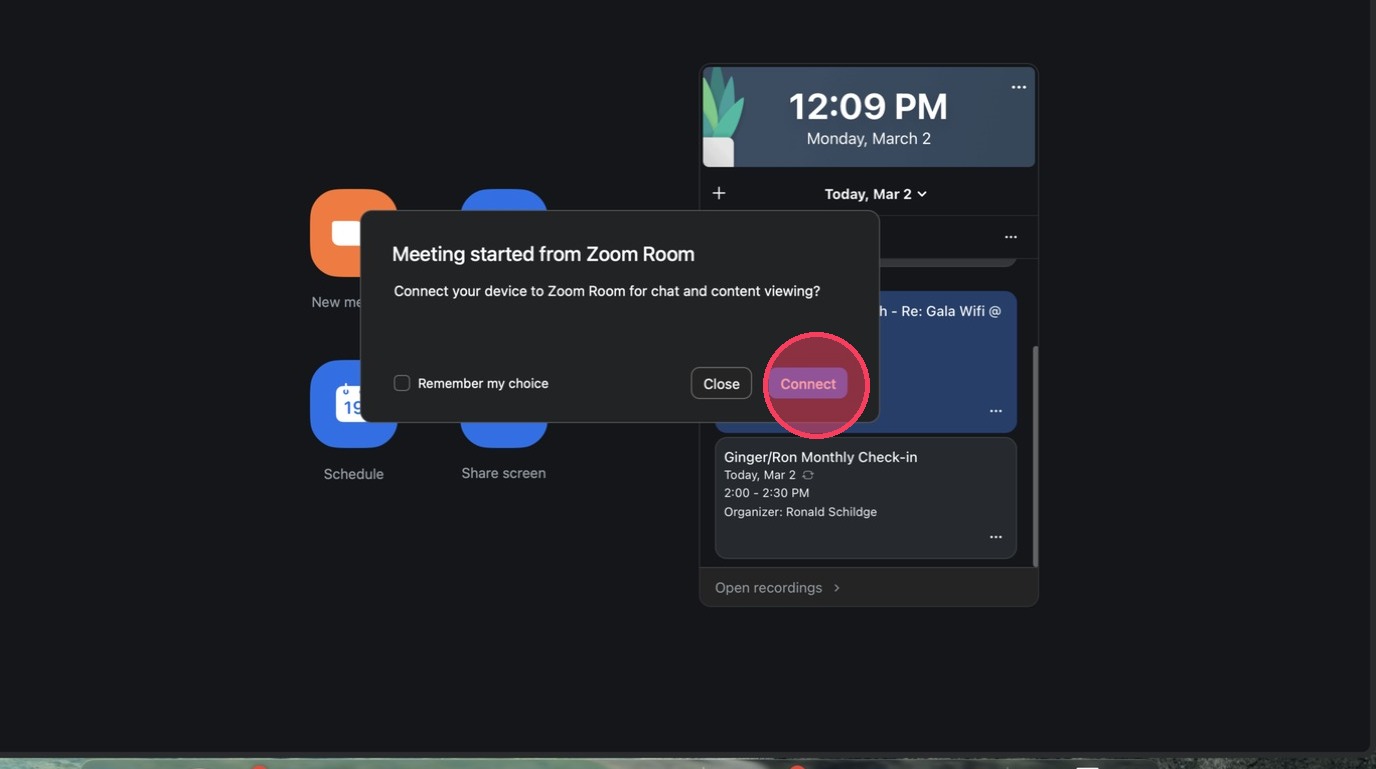
6. Click "More meeting controls, collapsed"
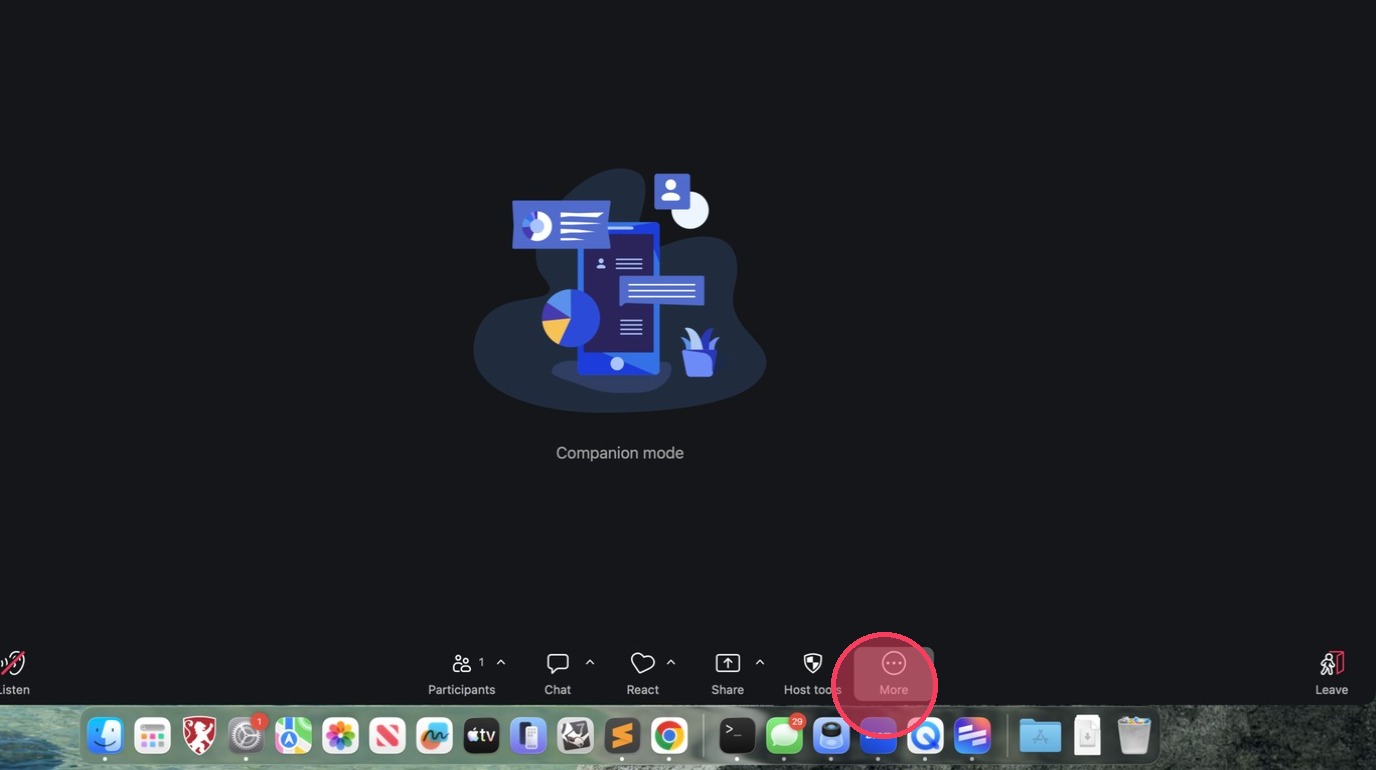
7. Click "Room Controller"
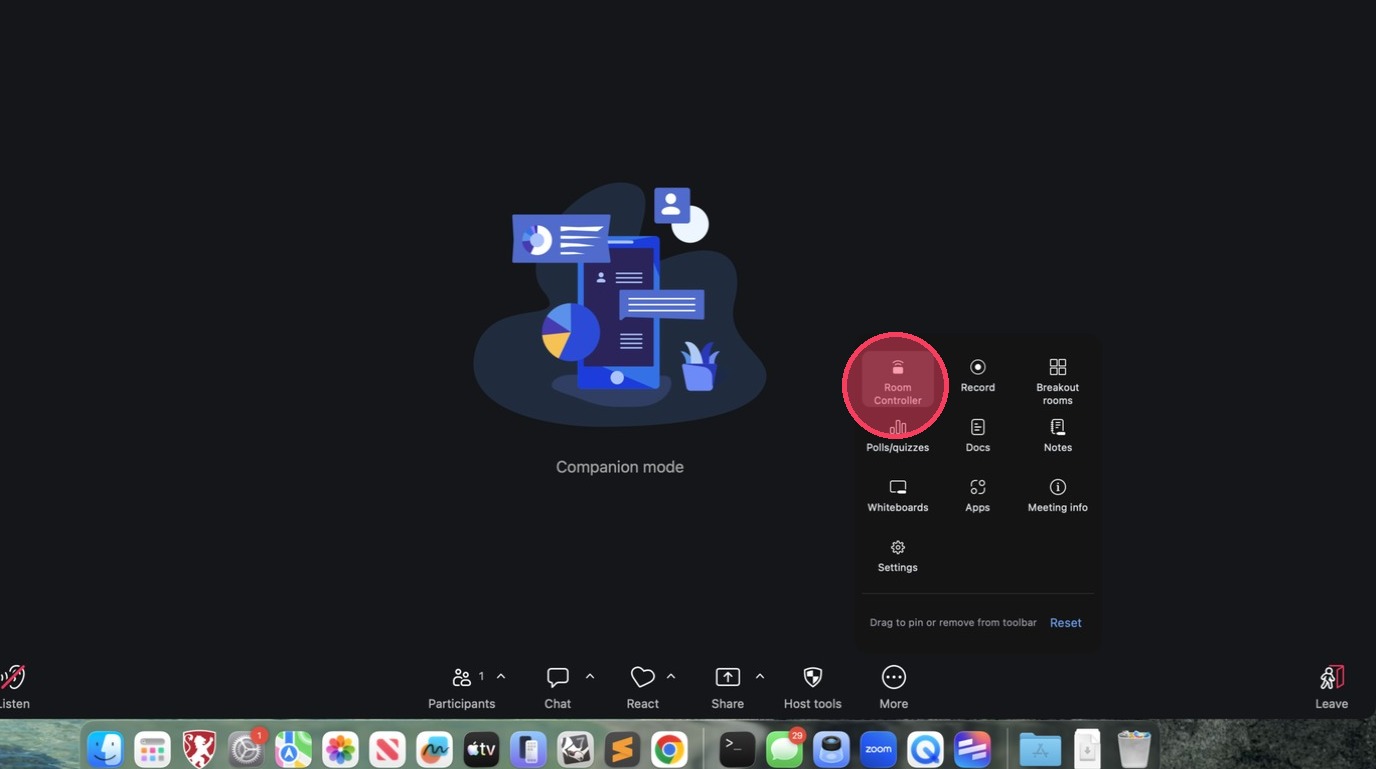
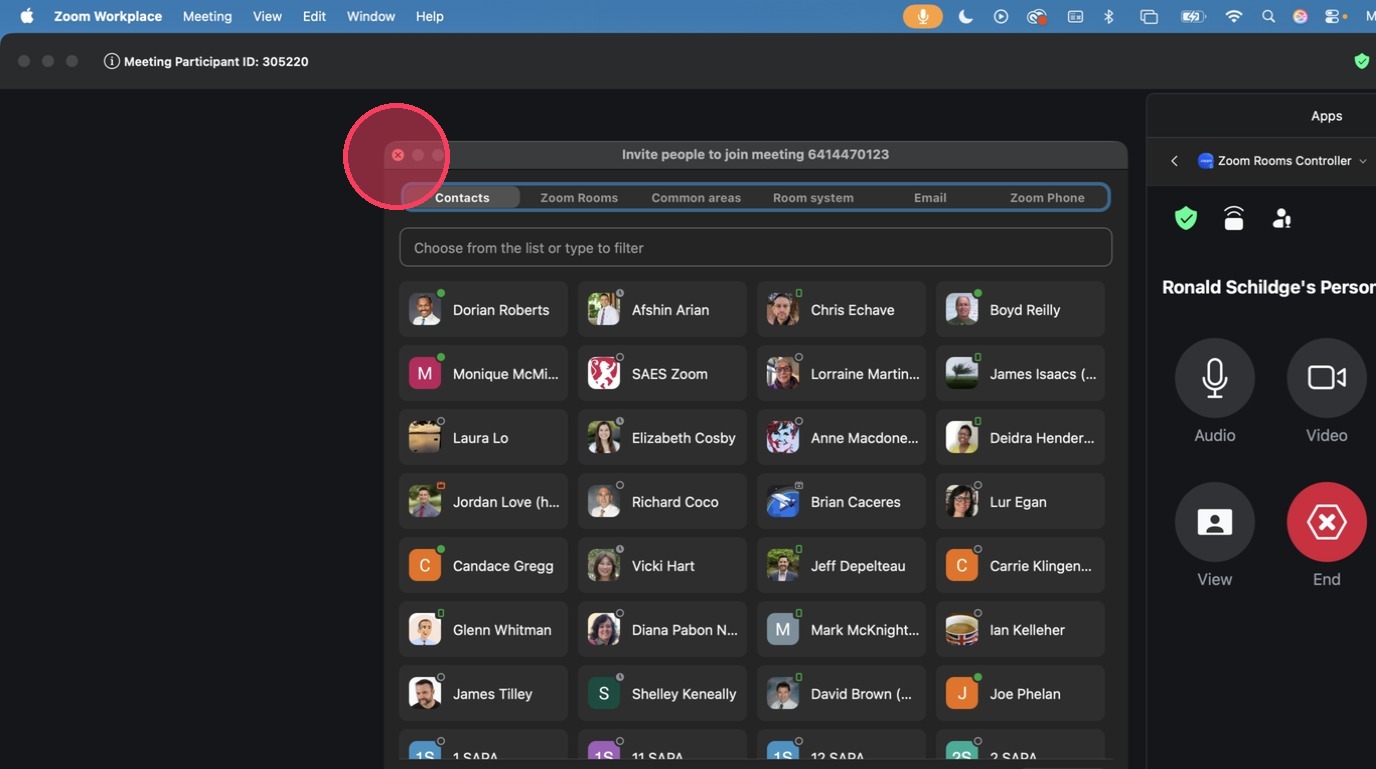
8. Invite your participants
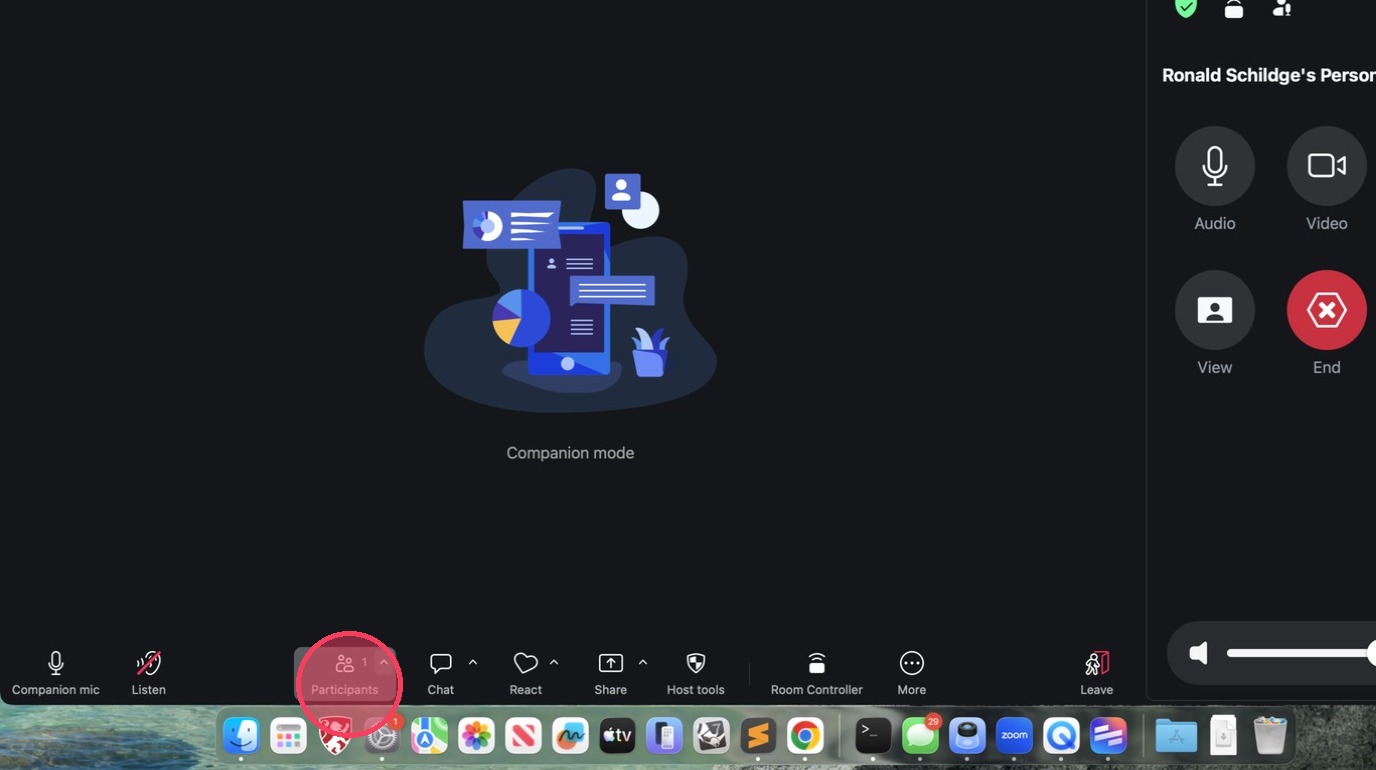
9. Find whoever you wish to invite.
10. Click "End" to close the meeting
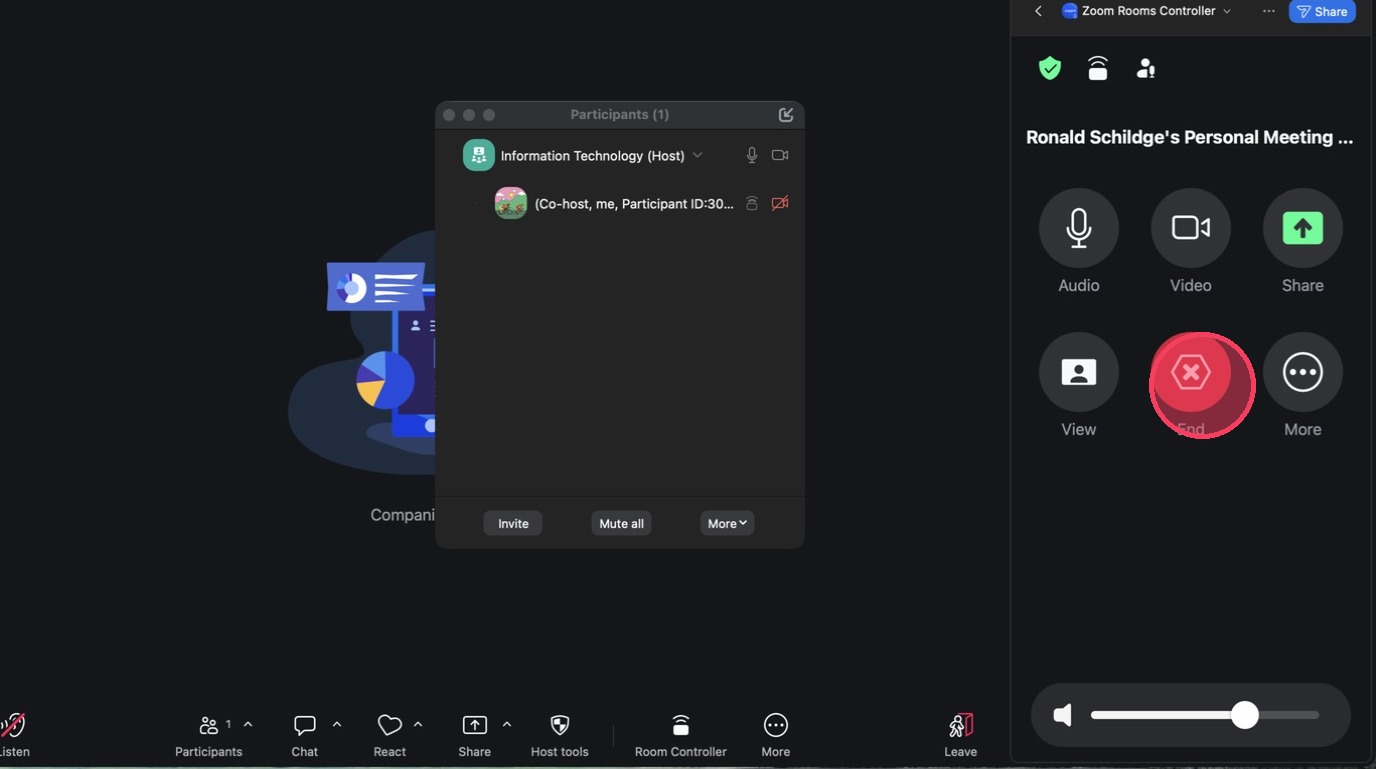
11. Click here