
Swank Digital Campus – Classroom Streaming Workflow
Website: https://digitalcampus.swankmp.net/SAES395306
Critical Requirement
Swank must be opened in Safari.
If you use Chrome:
The streaming controls will not appear.
The video will not project correctly.
This is required for Swank to Airplay onto the projector or TV.
Step 1 – Open Swank
Open Safari.
Navigate to:
https://digitalcampus.swankmp.net/SAES395306Bookmark the site for future use.
Step 2 – Log In
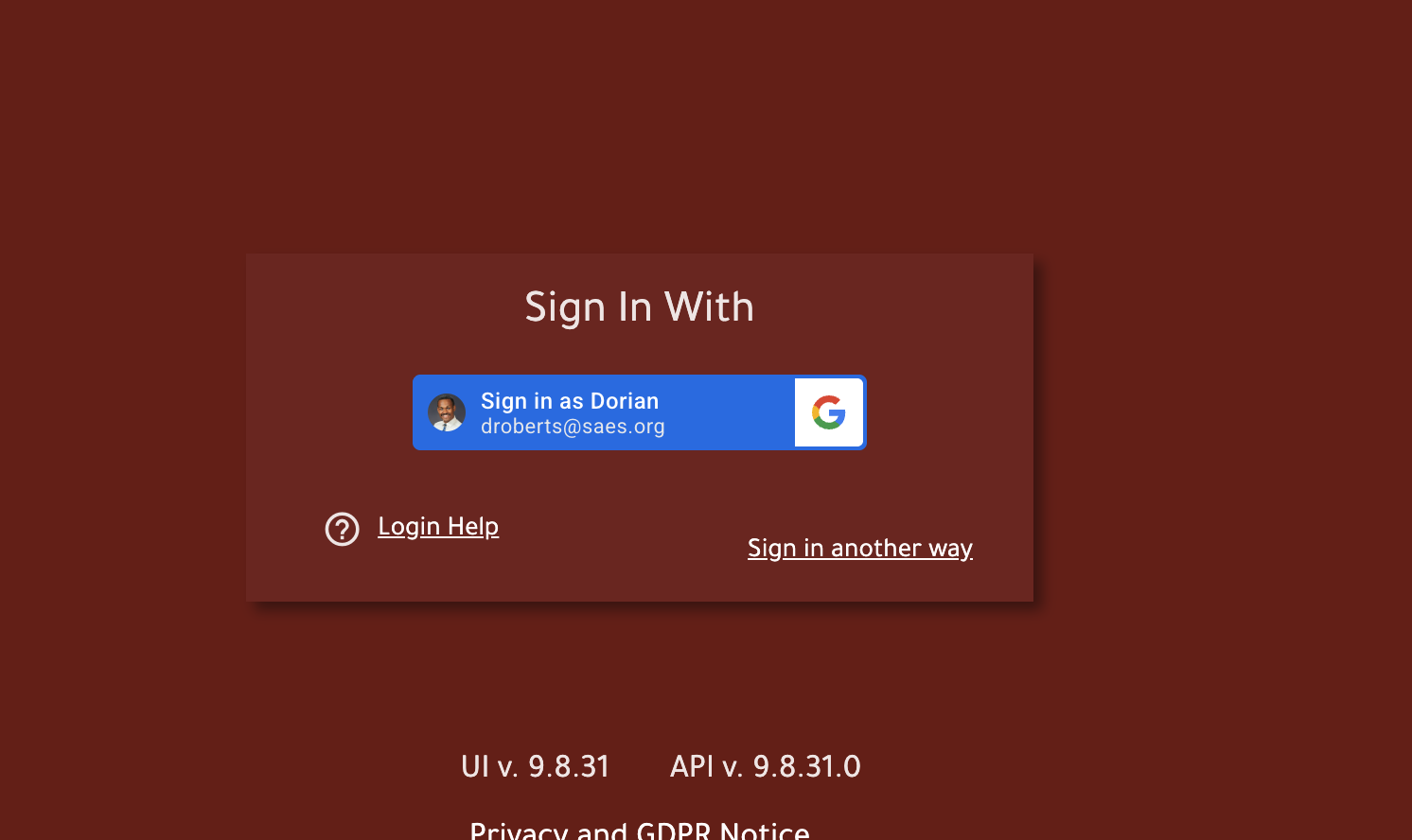
Click sign in with Google. It should look like the picture below but if it prompts to enter email and password please enter your full @saes email credentials and password.
Step 3 – Search and Play
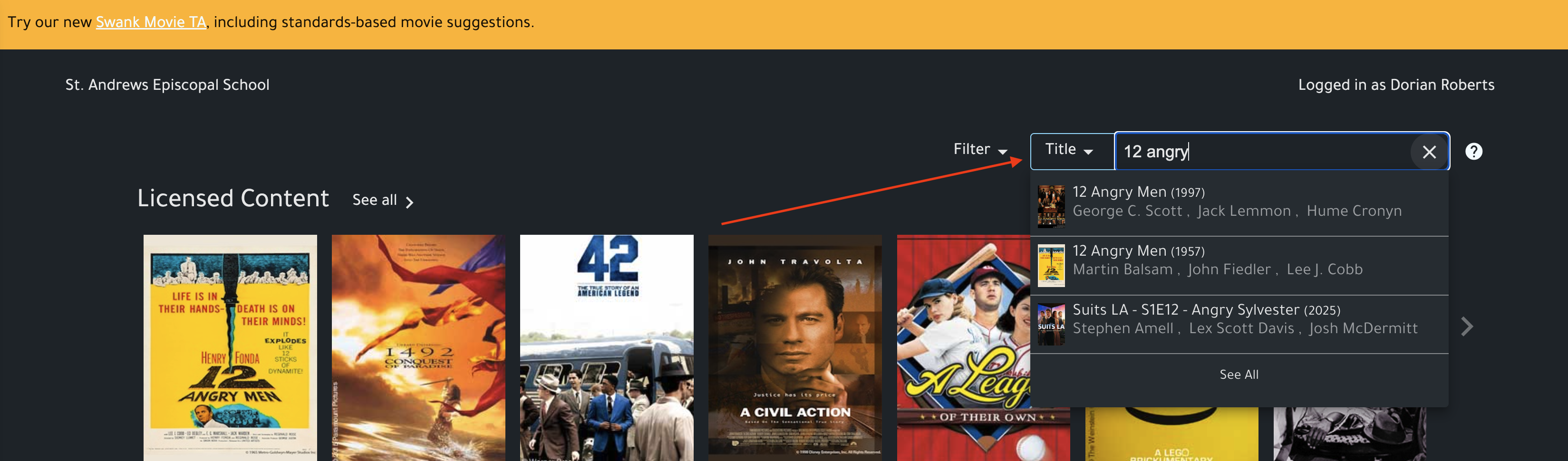
Once signed in you can use the Search bar to locate the film you wish to watch
Select your film.
Click Play.
Projecting to Apple TV
Do NOT Mirror Your Screen
If you mirror your full screen:
The video will appear black.
There will be no audio.
Correct Method
Start playing the film in Safari.
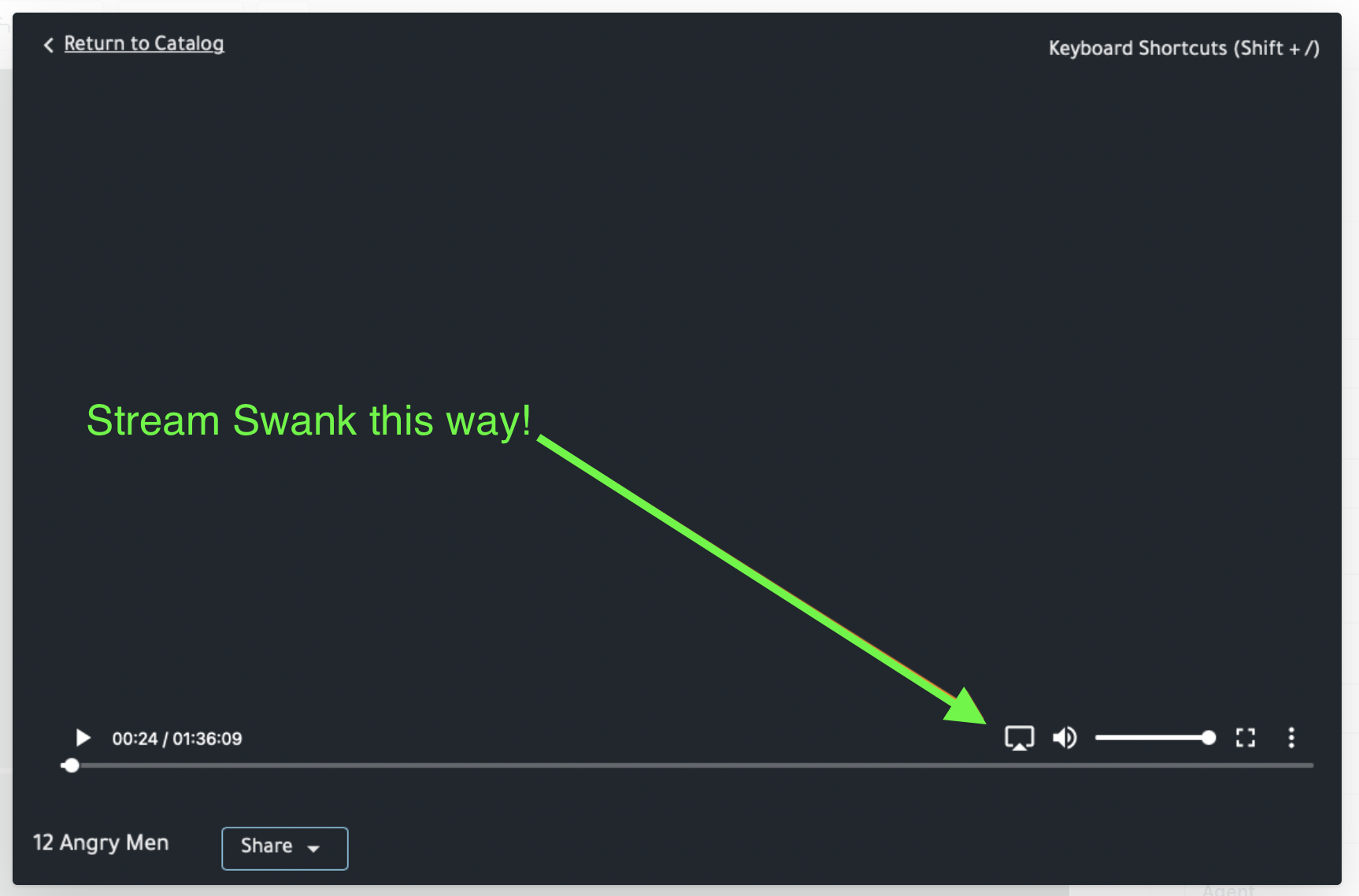
Click the AirPlay icon inside the Swank video player controls.
Select your classroom Apple TV.
The video and audio will display properly.
FAQ
Q: How do I access Swank?
A:
Open Safari (Chrome will not work for streaming).
Go to the portal link above.
Q: How do I stream to the Apple TV?
A:
Do NOT mirror your full screen.
Start the film in Safari.
Click the AirPlay icon inside the Swank video player.
Select your classroom Apple TV.
Q: Why is my screen black or there’s no audio?
A:You are likely screen mirroring. Disconnect mirroring and use the AirPlay icon inside Swank.
Also confirm you are using Safari.